

Lifestyle
iPhone privacy: the settings that matter and where a VPN fits
A privacy plan works in layers: device controls, app choices and network protection.
Illustration created for VPNVertex
Illustration, not a VPNVertex hands-on test.
A private iPhone is built from several layers: app permissions, tracking choices, account security, and network protection. A VPN can help with the last layer, but it cannot replace the others.
A private iPhone is built from several layers: app permissions, tracking choices, account security, and network protection. A VPN can help with the last layer, but it cannot replace the others. Start with your iPhone's built-in privacy controls, then add a VPN when you want to protect the device's network path on an untrusted connection.
What iPhone privacy actually covers
People use "iPhone privacy" to mean several different things. Apple separates access to sensitive device data from tracking across other companies' apps and websites. A VPN addresses a different question: who can observe or influence traffic while it travels between the phone, the VPN server and the internet?
That distinction matters. A privacy setting can limit an app's access to location or photos. App Tracking Transparency can limit a particular kind of cross-company advertising tracking. A VPN can create an encrypted connection to its server. None of those controls automatically fixes a reused password, a malicious link or an app you do not trust.
Five settings worth checking
1. App Tracking Transparency
Open Settings > Privacy & Security > Tracking to review apps that asked to track your activity. Apple explains that you can allow or deny an individual request, or turn off the option that lets apps ask. This control is about tracking across other companies' apps and websites; it is not a promise that an app collects no data at all. Read the app's privacy details as well.
2. App permissions
Review which apps can use your location, camera, microphone, contacts and photos. Give access only when the feature needs it, and prefer a limited or "while using" option when the system offers one. Apple describes these permission controls as part of its broader privacy features.
3. App Privacy Report
Apple's Personal Safety User Guide explains that App Privacy Report can show how often apps access privacy-sensitive data and device sensors after the report is enabled. It is a visibility tool, not a malware verdict. Use unexpected access as a reason to review the app, its permissions and whether you still need it.
4. Passcode, account protection and updates
Use a device passcode you do not reuse elsewhere, enable the strongest account security options available to you, and install iOS updates promptly. These steps protect the phone itself and the Apple Account. A VPN does not help if someone already has the credentials for an account or has access to an unlocked device.
5. Network and local privacy
Be deliberate about unfamiliar Wi-Fi networks. Confirm the network name with the venue, avoid logging in through a suspicious captive portal, and forget networks you no longer use. When you need an added network layer, Apple documents support for VPN and other network-security technologies on Apple devices in its VPN security guide.
Where a VPN helps
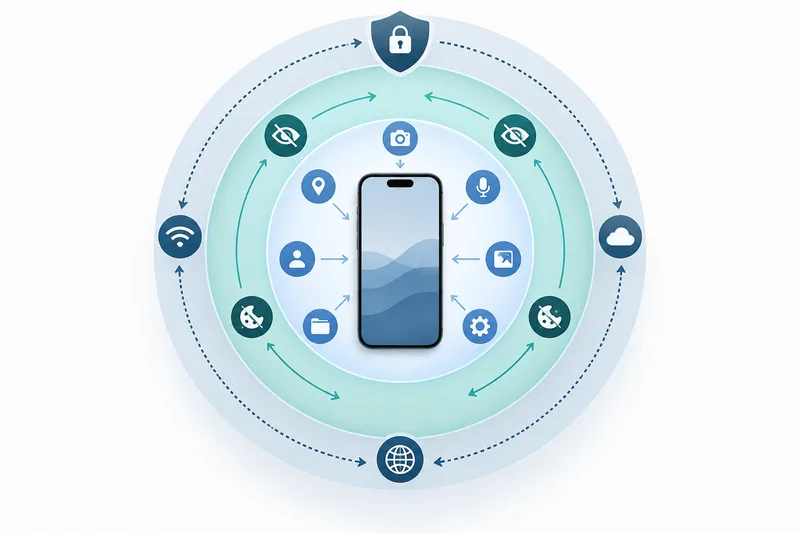
Original illustration created for VPNVertex.
A VPN can encrypt the connection between the iPhone and the VPN service, which is useful when the local network is not one you control. It can also reduce the amount of browsing traffic that the local Wi-Fi operator can inspect directly. The tradeoff is that the VPN provider becomes an important party in the connection, so its privacy policy, ownership, security record and account protections matter.
A VPN does not hide the fact that you use an app from the app itself. It does not remove an app's permissions, stop a scammer from imitating your bank, or guarantee that a website will not recognize you after you sign in. It is one layer in an iPhone privacy plan, not the whole plan.
A practical iPhone privacy checklist
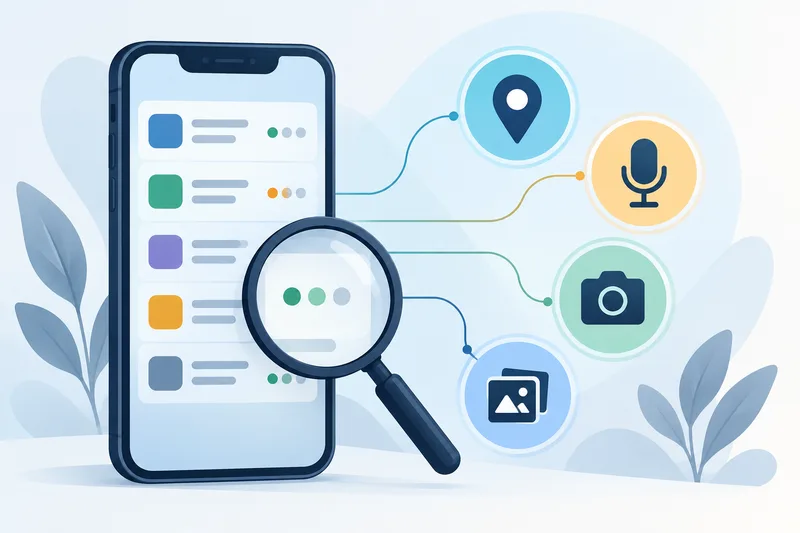
Original illustration created for VPNVertex.
- Turn off tracking requests you do not want and review the existing list.
- Remove location, microphone, camera and photo access that an app does not need.
- Enable App Privacy Report and review it after you have used the phone normally.
- Use a strong passcode, account MFA and current iOS updates.
- On public Wi-Fi, confirm the network and use HTTPS. Add a VPN when its privacy tradeoff makes sense.
How to verify the changes
Make one change at a time and record what you changed. Reopen the Tracking list to confirm the choice, review the permissions for apps you use most, and leave App Privacy Report on long enough to collect useful activity. If a VPN is part of the plan, check its connection indicator and its behavior when the connection drops; do not assume that every app uses the same kill-switch or always-on setting.
Who benefits most from an iPhone VPN?
It is most useful for people who regularly move between networks: digital nomads, travelers and journalists working from cafes, hotels or event venues. Our guides to VPNs for digital nomads, journalists, expats and gamers cover different usage priorities. The right choice still depends on the service's own policies and the device features you actually need.
What we did not test
VPNVertex did not run a hands-on iPhone lab test, inspect a private device, or verify every VPN provider's current app behavior for this guide. The steps above translate Apple's public documentation into a product-neutral checklist. No penetration test, network capture or account-recovery attempt was performed for this article.
FAQ
Final takeaway
Start with Apple's built-in privacy controls, review permissions regularly and treat a VPN as one network layer rather than a complete privacy solution. If you also manage non-Apple devices, compare the control categories in our Android privacy app guide.
Sources
Editorial note: this guide is product-neutral. VPNVertex may earn a commission from some links elsewhere on the site; that does not change the security limits described here. Author: Simon Phillips
