

Education
WireGuard setup on Windows: install, import and validate safely
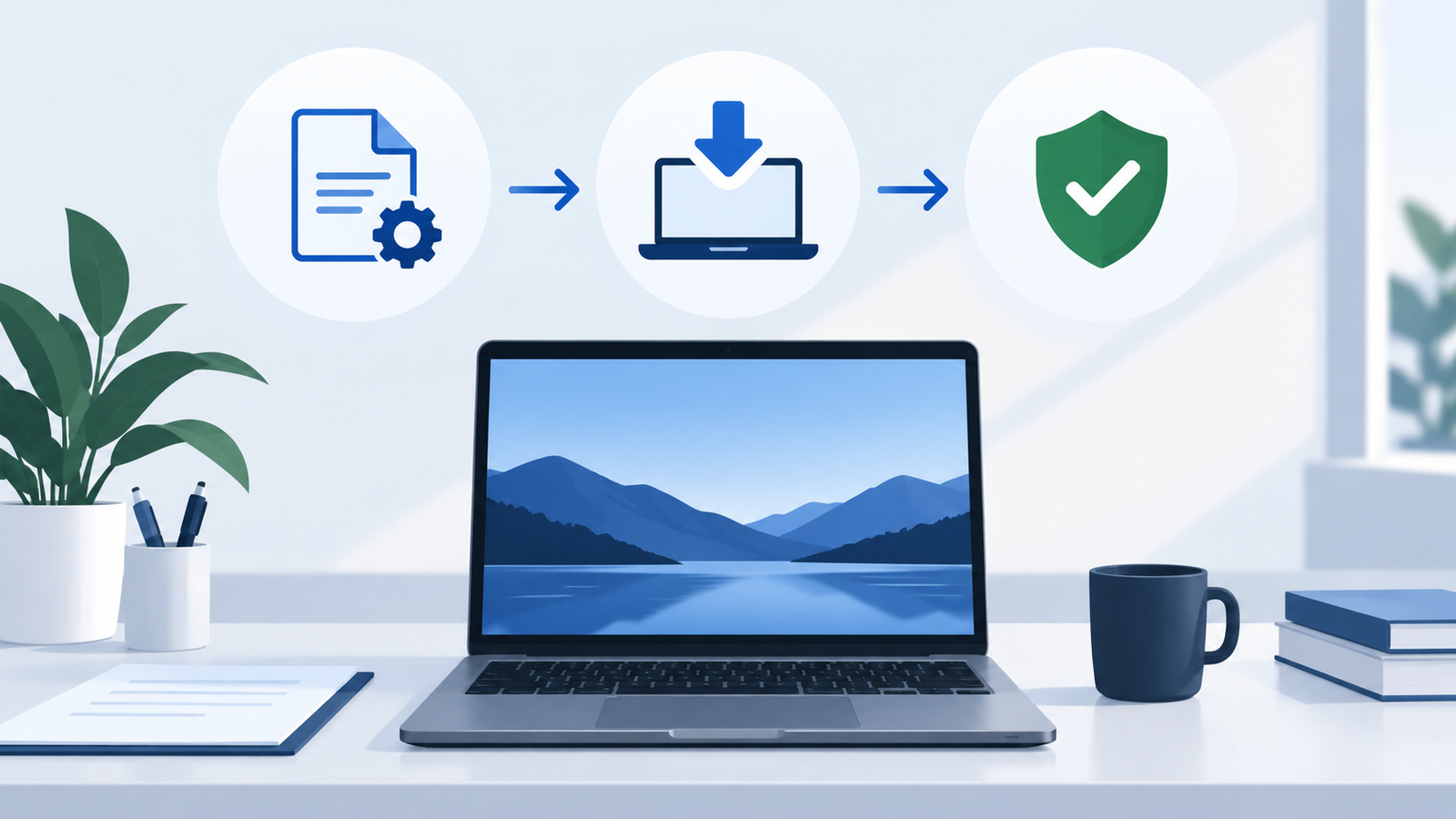
Abstract Windows WireGuard setup workflow
Illustrative diagram created for VPNVertex
Diagram, not a VPNVertex hands-on test.
How to install the official WireGuard Windows client, import a profile safely, and validate the tunnel without guessing at the routing.
The Windows part of a WireGuard deployment is usually the client side. You install the official application, import a configuration supplied by the tunnel administrator, activate the tunnel and verify the routes that the configuration is meant to carry.
This is a client setup guide. It does not create a server, provide a VPN provider account or test a real endpoint. VPNVertex did not execute these steps on a Windows machine. Use a configuration made for your device, and treat its private key as a secret.
Before installing
Ask the administrator for a configuration that matches your device. A usable profile normally contains an interface address and private key for the client, plus the server public key, endpoint and AllowedIPs. If you were not given a profile, do not copy one from a stranger or invent a key exchange by editing random values.
Check the plan before activating it:
- Which traffic should use the tunnel?
- Which DNS resolver should the client use?
- Is the endpoint reachable from the network where you will connect?
- Does the profile use a full-tunnel route or selected private networks?
- Who can revoke the peer if the device is lost?
Install the official Windows client
Use the WireGuard installation page and its Windows download path. The project also publishes a dedicated Windows download page. Download from the official project rather than from a repackaged installer.
The installer and the client are software changes on the local computer. Follow your organization's approval process if you do not have administrator rights. VPNVertex did not install the software for this article.
Import the profile
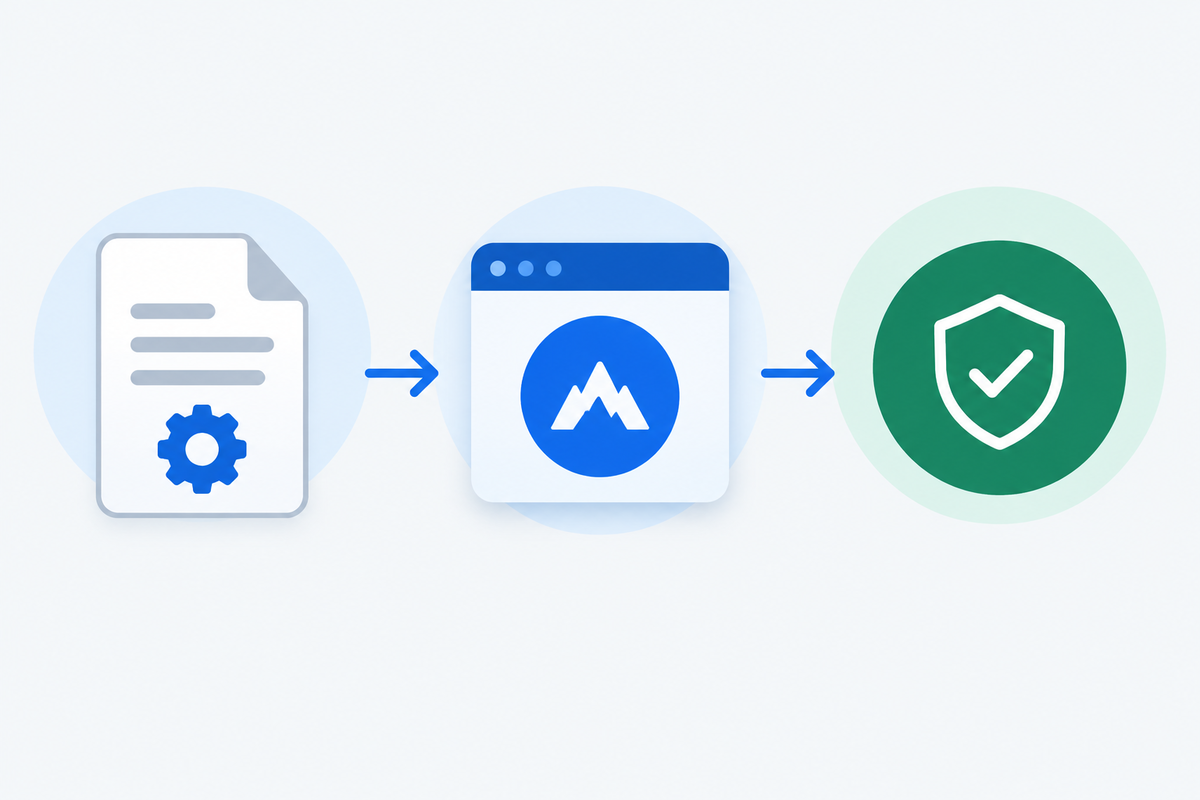
Original editorial image created for VPNVertex.
Open the installed WireGuard client and use its import function to select the configuration file you received. The exact layout can change with the client version, so use the visible import control rather than relying on a screenshot from another release.
Before activating, read the profile as a routing document:
[Interface]
Address = 10.66.0.2/24
PrivateKey = CLIENT_PRIVATE_KEY

[Peer]
PublicKey = SERVER_PUBLIC_KEY
Endpoint = VPN_SERVER_NAME_OR_IP:51820
AllowedIPs = 10.66.0.0/24
The values above are placeholders. The address range is a documentation example, not a VPNVertex endpoint. Never publish a real private key. If the profile contains AllowedIPs = 0.0.0.0/0, it is a broad route. Understand the DNS and access consequences before you turn it on.
In the official toolchain, Address is one of the extra fields handled by wg-quick; it is not a peer parameter handled by wg itself. The Windows client consumes the complete profile, but keeping this distinction clear avoids treating every line as the same type of WireGuard option.
Activate and check the result
Activate the imported tunnel only when you know which network traffic should move. Then check the client status and confirm that a recent handshake appears after generating permitted traffic. A status indicator by itself does not prove that a protected application works.
Use a narrow validation sequence:
- Confirm that the tunnel profile is the intended file.
- Confirm that the local tunnel address does not overlap with the current LAN.
- Activate the tunnel.
- Test the tunnel address or an approved private service.
- Test DNS resolution for the service the profile is meant to reach.
- Check a route or status view to confirm that the expected prefix is covered.
- Disconnect and confirm that ordinary connectivity returns if the profile was split tunnel.
Do not use a public IP checker as the only test. It can show an exit address while a private application route, DNS rule or return path is still broken.
Success criteria and distinct failures
| Gate | Success criterion | If it fails |
|---|---|---|
| Installation | The official client opens without using a repackaged installer. | Stop and verify the source and local approval. |
| Profile | The intended profile contains the expected peer, endpoint and route scope. | Do not activate it; ask the administrator for a corrected profile. |
| Handshake | The client reports recent peer activity after permitted traffic is sent. | Check endpoint, UDP path, peer key and server state. |
| Private route | The approved private address or service responds. | Check AllowedIPs, forwarding, firewall and the return route. |
| Broad route | DNS and general connectivity match the documented full-tunnel or split-tunnel intent. | Disconnect safely and review default routes, DNS and egress policy. |
Common Windows setup failures
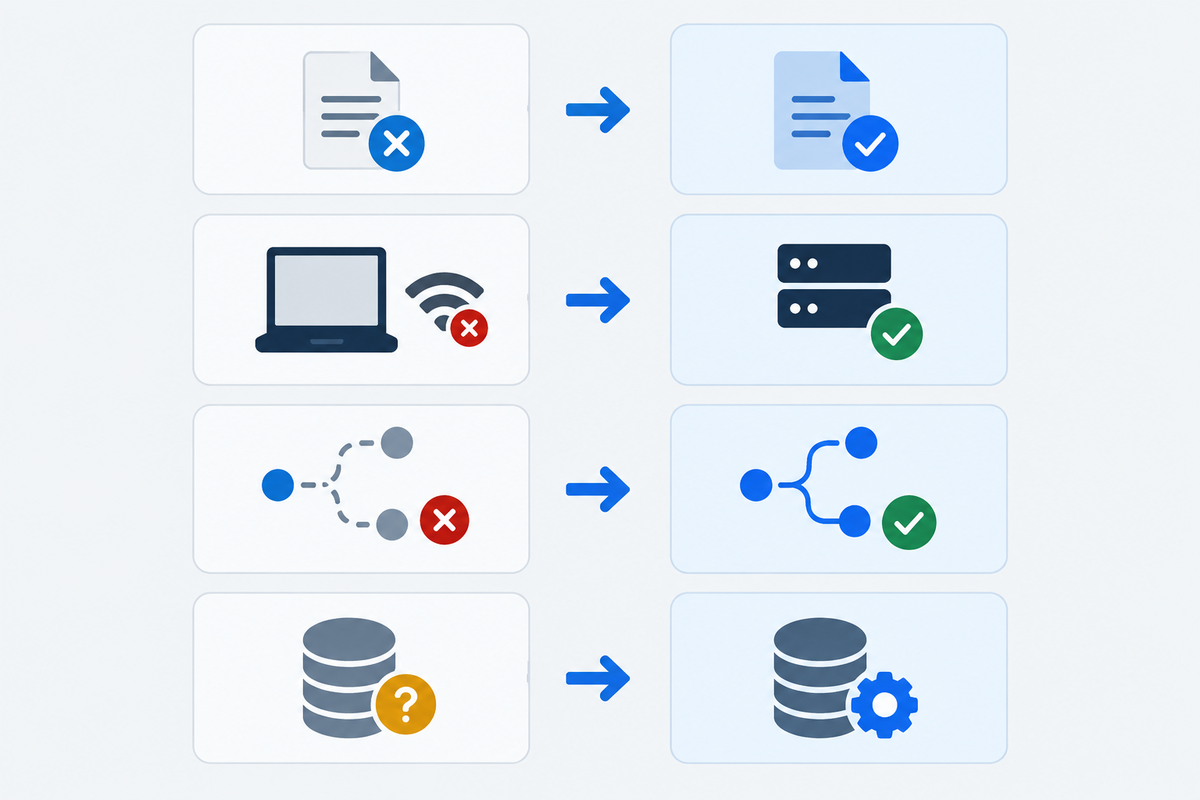
Original editorial image created for VPNVertex.
The profile imports but the handshake never appears
Check the server endpoint, UDP reachability, the server's peer public key and the allowed port. A local firewall, captive portal or restrictive network may block the path. The administrator should also confirm that the peer has not been revoked or replaced.
The handshake appears but the private service is unreachable
Inspect AllowedIPs on both sides, the server forwarding policy and the return route for the protected network. A handshake proves that encrypted peer traffic exists. It does not create a route to every private subnet.
The internet stops working after activation
The profile may be a full tunnel. Check the intended DNS path, default route and server egress policy. Disconnect only if doing so is safe for the work in progress, then ask the administrator whether the profile is meant to carry all traffic.
The client behaves differently on two networks
NAT, UDP filtering, DNS policy and IPv6 behavior can differ between a home network, an office and a public hotspot. Record the network conditions and the exact status before changing the profile.
Remove a profile safely
Disconnect the tunnel before deleting its profile. Confirm that the file is stored only where the organization expects it, and remove copies from downloads, email attachments and shared folders according to the local policy. If the private key may have been exposed, ask the administrator to revoke and replace the peer.
What we did not test
VPNVertex did not install the client, import a profile or test a live Windows tunnel for this guide. Configuration values shown above are placeholders, not a real deployment.
Final takeaway
On Windows, import only a trusted WireGuard profile, verify the allowed routes and confirm the tunnel before relying on it. For the cross-platform concepts behind the profile, use our general WireGuard setup guide.
Sources
- WireGuard installation, checked September 16, 2026
- WireGuard Windows downloads, checked September 16, 2026
- WireGuard Quick Start, checked September 16, 2026
- WireGuard
wg-quickmanual, checked September 16, 2026 - WireGuard overview and cryptokey routing, checked September 16, 2026
- WireGuard protocol, checked September 16, 2026
- Microsoft VPN routing decisions, checked September 16, 2026
- Microsoft VPN profile options, checked September 16, 2026