

Education
How to set up WireGuard without guessing at routing
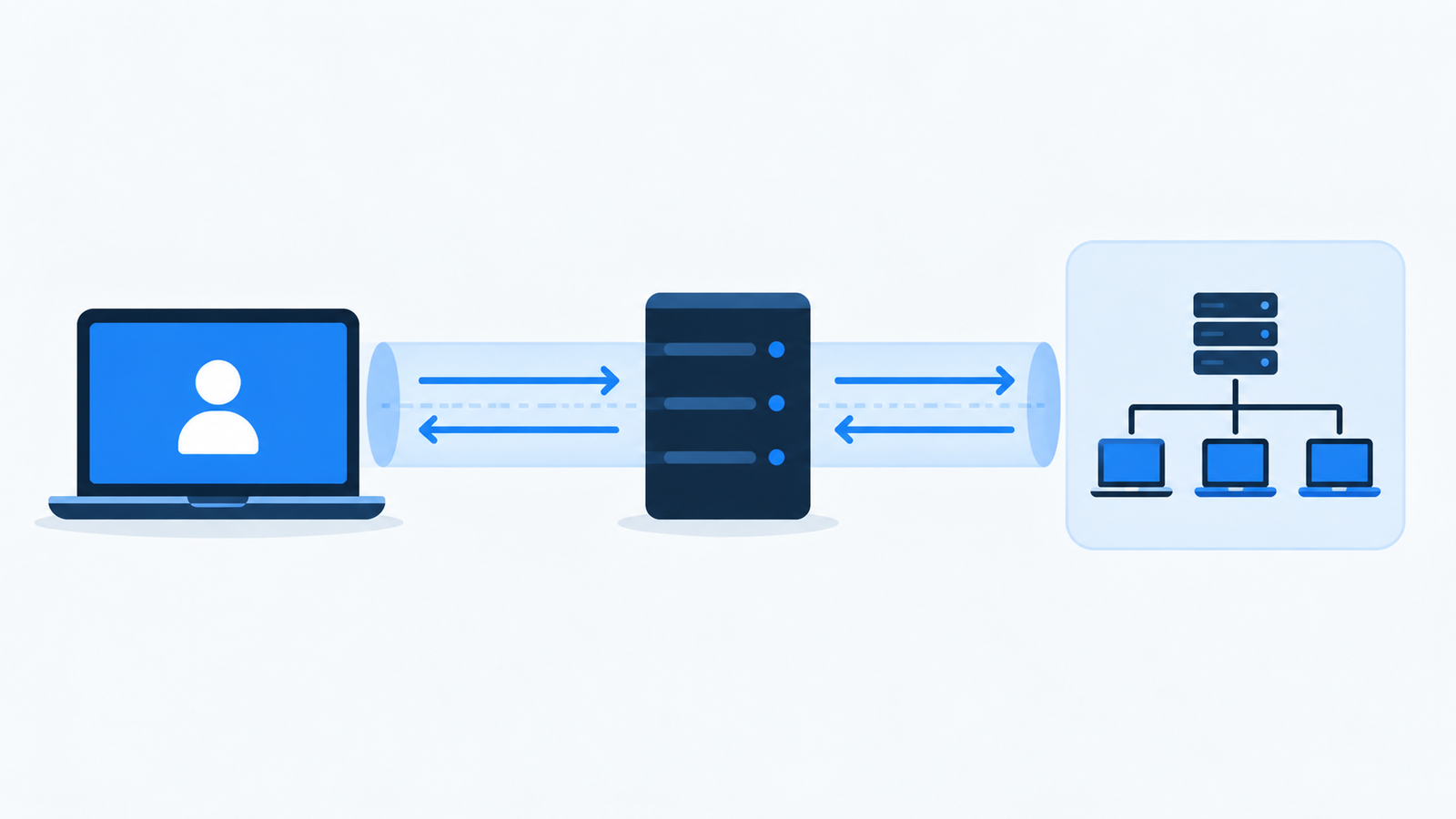
Abstract WireGuard client, peer and protected subnet topology
Illustrative diagram created for VPNVertex
Diagram, not a VPNVertex hands-on test.
A source-backed guide to planning a WireGuard setup: peer design, key generation, AllowedIPs, the wg vs wg-quick distinction, and how to validate a tunnel.
WireGuard setup is short only after the network design is clear. You need a peer model, tunnel addresses, keys, routes and an endpoint that can reach the other side. If one of those pieces is vague, copying a configuration file can produce a tunnel that appears active but carries no useful traffic.
This guide uses a simple client-to-server example. It is a planning and documentation guide, not a claim that VPNVertex ran the commands. Replace every placeholder with values from your own design, and do not publish a private key.
Start with the design
Decide what the tunnel should carry:
- A client-to-server design gives one client access to the server or a protected subnet.
- A site-to-site design connects two networks and needs routes in both directions.
- A full-tunnel client sends broad traffic through the peer. A split-tunnel client sends only selected networks.
WireGuard's documentation calls the relationship between public keys and AllowedIPs cryptokey routing. The same field helps select a peer for outbound traffic and validate source addresses for inbound traffic. Treat it as both a routing decision and an access-control decision.
For a documentation example, use a private tunnel such as 10.66.0.0/24, with the server at 10.66.0.1 and one client at 10.66.0.2. These addresses are examples only. Do not reuse them blindly if they overlap with a local or remote network.
Install the official tools
Use the installation path for the operating system that will host the interface. WireGuard publishes packages and installers for several platforms on its official installation page. The Quick Start documents the command-line concepts used below.
On a Linux host, an illustrative package step may look like this:
# Example only. VPNVertex did not run this command.
sudo apt install wireguard
Check the package name and repository for the distribution you actually manage. Installing a package is not the same as creating a working peer relationship.
Create keys without exposing them
WireGuard peers use a private key and a corresponding public key. Keep the private key on the device that owns it. Share only the public key with the peer that needs to authenticate it.
An illustrative Linux sequence is:
# Example only. Generate and store the private key locally.
umask 077
wg genkey | tee server-private.key | wg pubkey > server-public.key
wg genkey | tee client-private.key | wg pubkey > client-public.key
Do not paste the output into a ticket, article, chat or screenshot. If a private key has been exposed, treat it as compromised and replace it according to the operating procedure for the device.
Map the first peer
The following is an illustrative structure, not a copy-paste production file. The uppercase values are placeholders.
The Address line is handled by the official wg-quick helper, while the WireGuard interface and peer fields are passed to wg. That distinction matters if an administrator uses wg directly instead of bringing the profile up with wg-quick.
Server:
[Interface]
Address = 10.66.0.1/24
ListenPort = 51820
PrivateKey = SERVER_PRIVATE_KEY

[Peer]
PublicKey = CLIENT_PUBLIC_KEY
AllowedIPs = 10.66.0.2/32
Client:
[Interface]
Address = 10.66.0.2/24
PrivateKey = CLIENT_PRIVATE_KEY

[Peer]
PublicKey = SERVER_PUBLIC_KEY
Endpoint = VPN_SERVER_NAME_OR_IP:51820
AllowedIPs = 10.66.0.0/24
PersistentKeepalive = 25
The example uses a narrow AllowedIPs value for the first peer. A real design may need a protected LAN, a default route or an explicit exclusion. Do not use 0.0.0.0/0 until you understand the DNS, return-route and access consequences.
The PersistentKeepalive setting can help a peer behind a stateful NAT keep a mapping open. It is not a universal fix for a blocked or misrouted endpoint. The endpoint must still be reachable, and the server must allow the required UDP traffic.
Plan the return path
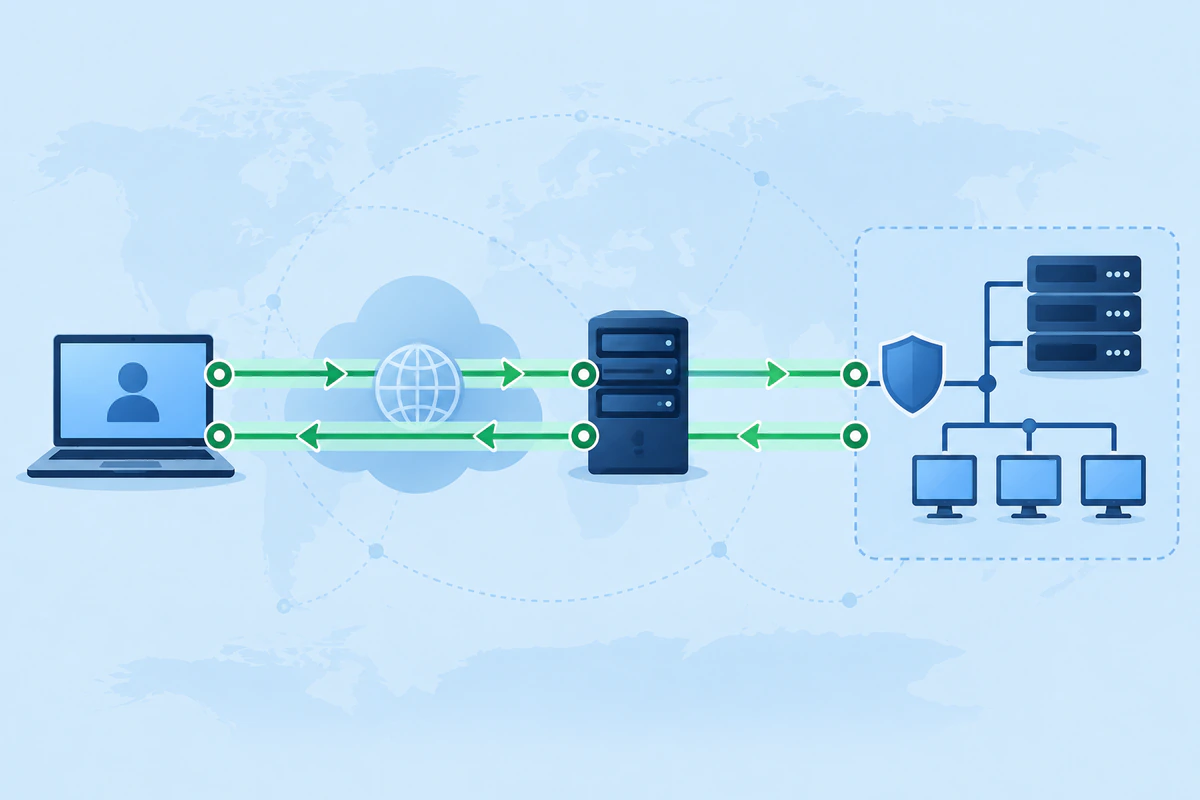
Original editorial image created for VPNVertex.
A handshake does not prove that a protected application route works. For a subnet behind the server, the server needs a route or forwarding policy toward that subnet. The subnet also needs a return route to the client tunnel address. A firewall may need rules for forwarding and for the service itself.
Keep the first test narrow:
- Confirm that the tunnel addresses do not overlap with an existing network.
- Confirm that the endpoint name resolves to the intended address.
- Confirm that the required UDP port can reach the WireGuard host.
- Bring up one peer and inspect its handshake state.
- Test the tunnel address or one approved service.
- Add protected subnets one at a time and record the return route.
On a system with the command-line tools, an administrator may inspect the peer state with:
# Example only. VPNVertex did not run this command.
sudo wg show
If there is no recent handshake, check endpoint reachability, the public keys, the listening port, NAT and the clock. If there is a handshake but no application traffic, inspect AllowedIPs, forwarding, firewall policy and the return route.
Success criteria and distinct failures
Treat each check as a separate gate:
| Gate | Success criterion | If it fails |
|---|---|---|
| Design | Tunnel and protected prefixes do not overlap. | Stop before generating a live route. |
| Keys | Each peer has its own private key and the other side has the matching public key. | Replace the affected peer keys through the documented process. |
| Handshake | wg show reports recent peer activity after permitted traffic is sent. |
Check endpoint, UDP reachability, keys and NAT. |
| Route | A permitted tunnel or subnet address responds through the intended interface. | Check AllowedIPs, forwarding and the return route. |
| Application | The approved service responds using the expected name and port. | Check firewall, DNS and service policy. |
Roll back cleanly
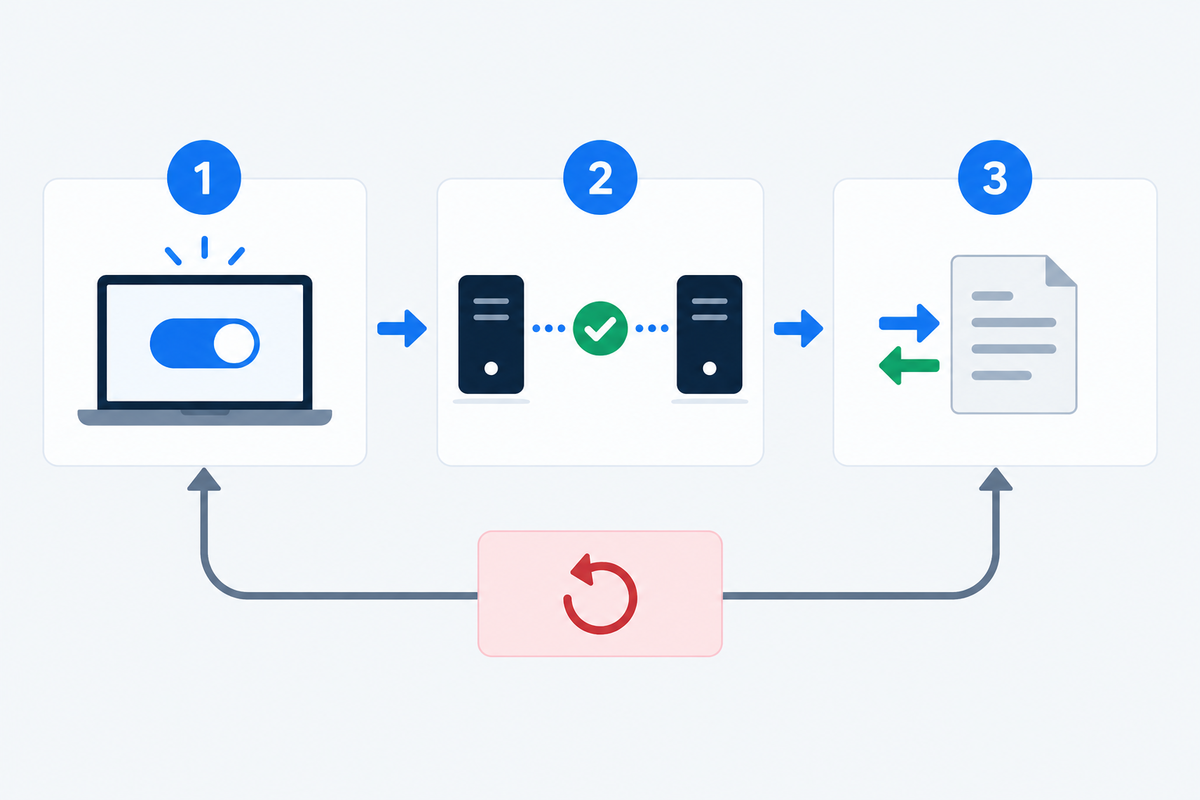
Original editorial image created for VPNVertex.
Before changing a working interface, save the intended configuration in a protected location and record which peer owns each public key. If the new route causes a problem, deactivate the interface or remove the new peer according to the host's operating procedure. Remove temporary rules and test routes. Do not leave a broad default route in place just because it made one test pass.
What we did not test
These commands and configuration examples are documentation examples. VPNVertex did not execute them on a production or lab network, and did not bring up a live handshake for this guide. Replace every placeholder before using a configuration on a real device.
Final takeaway
Build a WireGuard configuration from verified peer keys, addresses and routes, then test one change at a time. Windows users can continue with our WireGuard setup guide for Windows.
Sources
- WireGuard installation, checked September 16, 2026
- WireGuard Quick Start, checked September 16, 2026
- WireGuard
wg-quickmanual, checked September 16, 2026 - WireGuard cryptokey routing, checked September 16, 2026
- WireGuard protocol and cryptography, checked September 16, 2026
- CISA communications infrastructure hardening guidance, checked September 16, 2026