
Troubleshooting
Why is my VPN so slow? 7 fixes for long load times
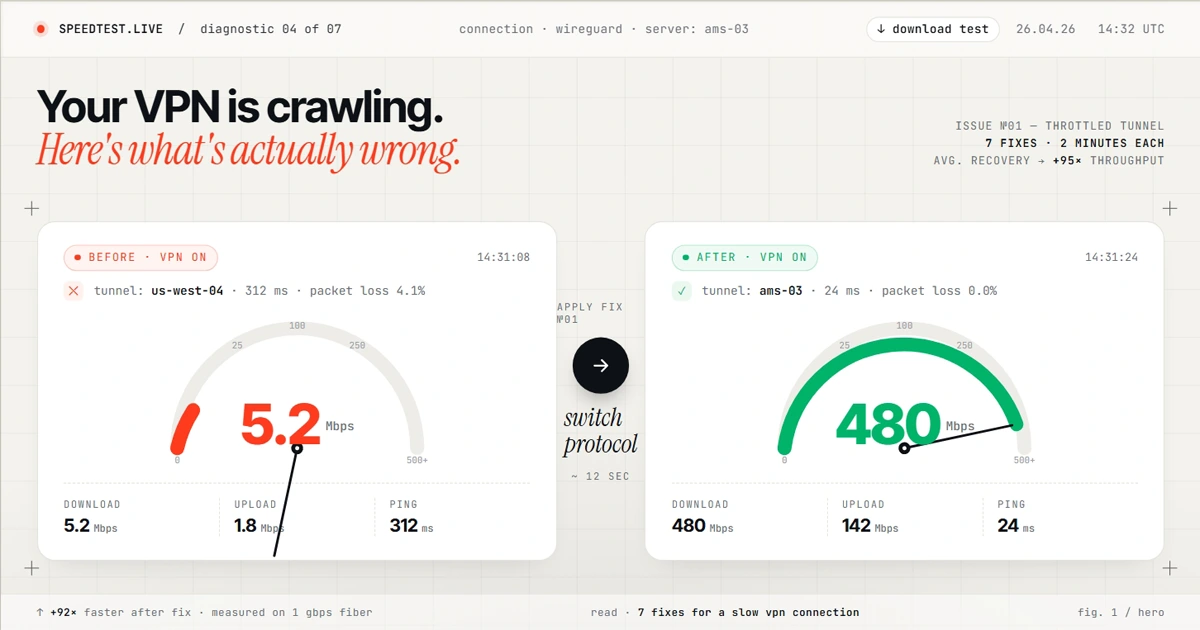
If you are asking why is my VPN so slow, or wondering why does VPN take so long to load websites or videos, compare the same connection with the VPN off and on first. A distant server, a slower protocol, Wi-Fi congestion, background traffic, or a stalled VPN session can all add delay. Work through these seven checks in order and change only one setting at a time.
Quick answer: why is my VPN so slow?
Run the same speed test on the same device and network with the VPN disconnected, then connect to a nearby server and repeat it. If only the VPN result is slow, test another nearby server and a modern protocol such as WireGuard. If both results are slow, investigate the local network or ISP connection first.
Here are the seven causes worth checking, in order of how often they turn out to be the culprit:
Every mile of physical distance adds latency that no software can fix.
Protocol overhead varies by device and network; compare the available protocols instead of assuming one fixed loss.
Popular cities at peak hours throttle everyone on the box.
Your local network is broken before the VPN tunnel even starts.
Your ISP is slowing you down regardless of VPN status.
Older CPUs can't keep up with AES-256-GCM at full speed.
Hung sessions, stale connections, broken tunnels. Boring but common.
Fix 1: Your server is too far away
Every mile your data travels adds latency. A VPN server in Singapore when you're sitting in Chicago means your traffic flies 9,000 miles before it even touches the rest of the internet. That's physics, not something software can fix.
Open your VPN app and check which server you're connected to, most apps show it on the main screen. If you're in the US and your server says Tokyo, London, or Sydney, that's likely your problem.
Disconnect, then reconnect to a US server in the same region as you. Northeast US: use New York or Secaucus. West Coast: use Los Angeles or San Jose. On NordVPN, the "Quick Connect" button picks the fastest available server automatically. On ExpressVPN, use "Smart Location".
Repeat the same test. A clear improvement on the nearby server identifies distance or routing as a major factor. If the result barely changes, move to Fix 2.
Fix 2: You're on the wrong protocol
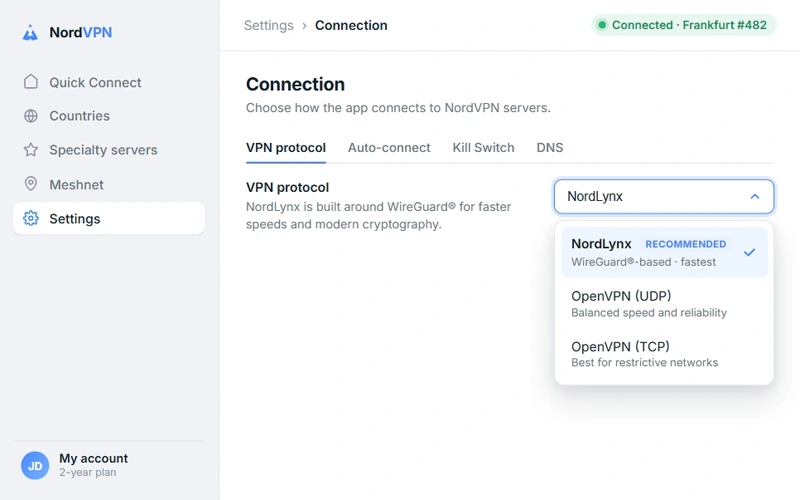
Different protocols have different overhead and can behave differently across devices and networks. OpenVPN TCP may be slower on some connections, while WireGuard-based options are designed for a smaller codebase and efficient operation.
In your VPN settings, look for "Protocol" or "Connection Type". If it says OpenVPN TCP or just "OpenVPN", that's the issue.
Switch to WireGuard. NordVPN calls theirs NordLynx, ExpressVPN calls theirs Lightway. Both are WireGuard-grade or WireGuard-based and plenty fast. Surfshark uses WireGuard directly. If WireGuard is blocked on your network (some schools and offices do this), fall back to OpenVPN UDP, not TCP. See our WireGuard vs OpenVPN vs IKEv2 guide for the full comparison.
Keep the protocol that gives the best repeatable result without breaking access on your network. The gain depends on the original bottleneck.
Fix 3: The server is overloaded
A busy or poorly routed server can be slower than another server in the same region. Providers do not expose the same load data, so compare two or three nearby locations.
If the app displays server load, compare a busy location with a lower-load option. If it does not, record ping, download speed, and upload speed for several nearby servers.
Connect to a nearby but less obvious city. If you're hitting New York at 90% load, try Newark, Boston, or Washington DC. Same region, much less crowded. NordVPN and ExpressVPN both let you pick specific cities within a country, use that feature.
If one nearby server is consistently faster, save it as a favorite. Results can change with time of day and routing, so retest before drawing a conclusion.
Fix 4: Your Wi-Fi is the actual bottleneck
If you're on 2.4 GHz Wi-Fi in an apartment building with twenty other routers fighting for the same channel, no VPN in the world will save you. Your bottleneck is the Wi-Fi link itself, not the VPN tunnel.
Run a speed test with the VPN completely off. If you're already capped at 30 Mbps and you pay for 300, your Wi-Fi is the issue. The VPN isn't making it worse, your Wi-Fi was already broken.
Two options. Easy: switch to your 5 GHz Wi-Fi network, most routers broadcast both, and the 5 GHz one usually has "5G" or "5GHz" in the name. Better: run an Ethernet cable to whichever device matters most (work laptop, gaming console, streaming box).
If the VPN-off result also improves over Ethernet or a less congested Wi-Fi band, the local network was limiting both connections.
Fix 5: Your ISP is throttling you
Congestion, traffic-management policies, poor peering, or a local connection problem can all create time-dependent slowdowns. A speed change by itself does not prove intentional ISP throttling.
Test with the VPN off and on at several times of day while keeping the device, test server, and connection type consistent. A repeated evening slowdown on both tests points to congestion or the underlying connection, not necessarily the VPN.
Restart the modem and router, check the ISP status page, and compare Ethernet with Wi-Fi. Obfuscation is intended for networks that block or identify VPN traffic; it can add overhead and is not a general speed boost. Network Lock is ExpressVPN's kill switch, not an obfuscation mode.
The goal is to identify whether the slowdown follows the VPN server, the local network, or the underlying internet connection.
Fix 6: Encryption is heavier than you need
AES-256-GCM is the standard encryption on most consumer VPNs. It's secure and it's fine, but it's also more CPU-intensive than ChaCha20. On older laptops or budget phones, the CPU itself becomes the ceiling on how fast the VPN can run.
Open Task Manager (Windows) or Activity Monitor (Mac) during a speed test with the VPN on. If your CPU is pegged at 90%+, encryption is your bottleneck, not network speed.
Try a protocol that uses ChaCha20 when the app offers one, then compare it with the default. WireGuard specifies ChaCha20-Poly1305, but many apps choose the cipher automatically.
A lower CPU load together with a repeatable throughput improvement suggests the device was part of the bottleneck.
Fix 7: The VPN app just needs a restart
This one is boring but it happens constantly. The app hangs in a weird half-connected state. The system tray icon says "connected", but data isn't actually flowing through the tunnel, or it's flowing through a bad session that never got renegotiated.
Fully quit the VPN app, not just disconnect. Actually right-click the tray icon and pick Quit. Then relaunch. Also check for an app update in the provider's settings.
Kill it, update it, restart it. Also restart your router if you're still seeing issues. Both together take about three minutes.
If performance returns after the restart, keep the app updated and repeat this step if the slowdown appears after sleep, roaming, or a network change.
When to actually switch VPN providers
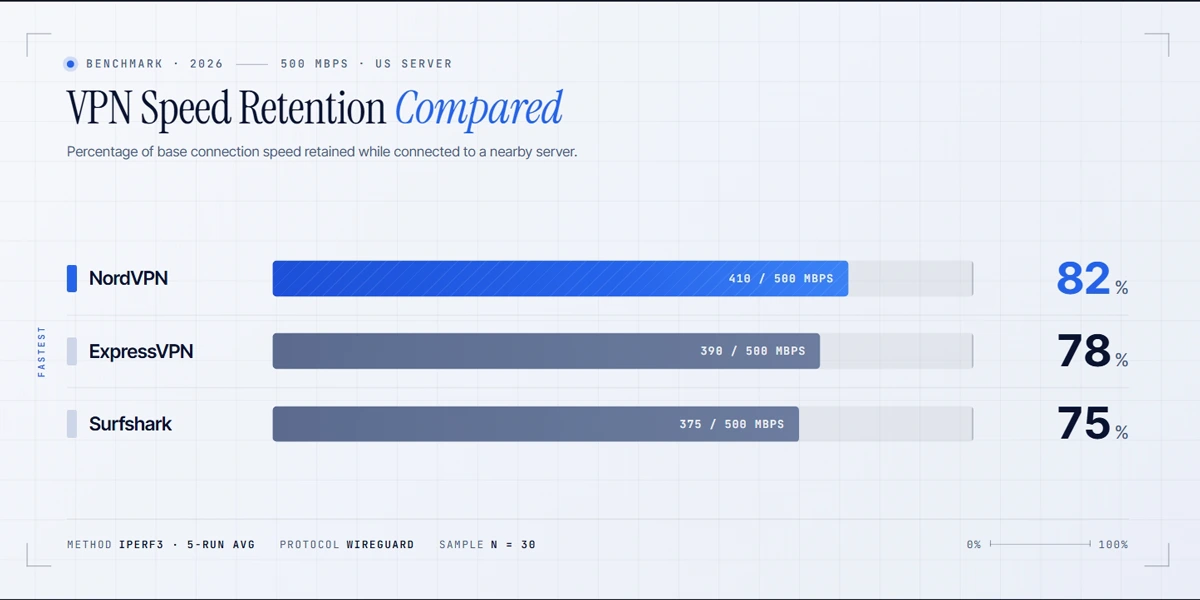
If you've run through all seven fixes and you're still slow, the VPN itself is the issue. No amount of protocol tweaking fixes a provider with bad infrastructure.
These reviews explain the protocols, infrastructure, and research evidence to compare if your current provider remains slow:
Free plans often impose server, location, or capacity limits, but performance varies by provider. Check documented limits and compare repeatable results before paying or switching. If low latency matters more than raw throughput, for gamers specifically, see our guide to the best VPNs for gaming.
If the app cannot establish a tunnel at all, use our guide to fixing a VPN not connecting on Windows 11.
Tools that help you diagnose VPN speed issues
Technical sources
FAQ: why is my VPN so slow?
Published: April 26, 2026 · Last updated: July 25, 2026 · Author: Simon Phillips
